


eSIM QR code not scanning? Do not panic
Buying a travel eSIM should make your holiday easier, not more stressful.
So if you have received your eSIM QR code and your phone will not scan it, it can feel frustrating. You might be trying to get everything ready before a flight, sitting in a hotel room on Wi-Fi, or helping someone else install their travel eSIM before a trip.
The good news is that a QR code not scanning does not always mean your eSIM is broken.
It may be a simple issue with lighting, screen brightness, camera focus, your phone settings, the way the QR code is displayed, or the fact that you are trying to scan the code from the same phone you are installing it on.
In many cases, you can still install your eSIM using the installation link or manual setup details.
This guide explains what to do if your eSIM QR code will not scan, how to check the common causes, and when to ask for help.
With AI Travel eSIM, you can also get support through chat. Message the bot on WhatsApp, Facebook Messenger or Instagram chat, explain what is happening, and follow the next steps.
Quick answer: what should you do first?
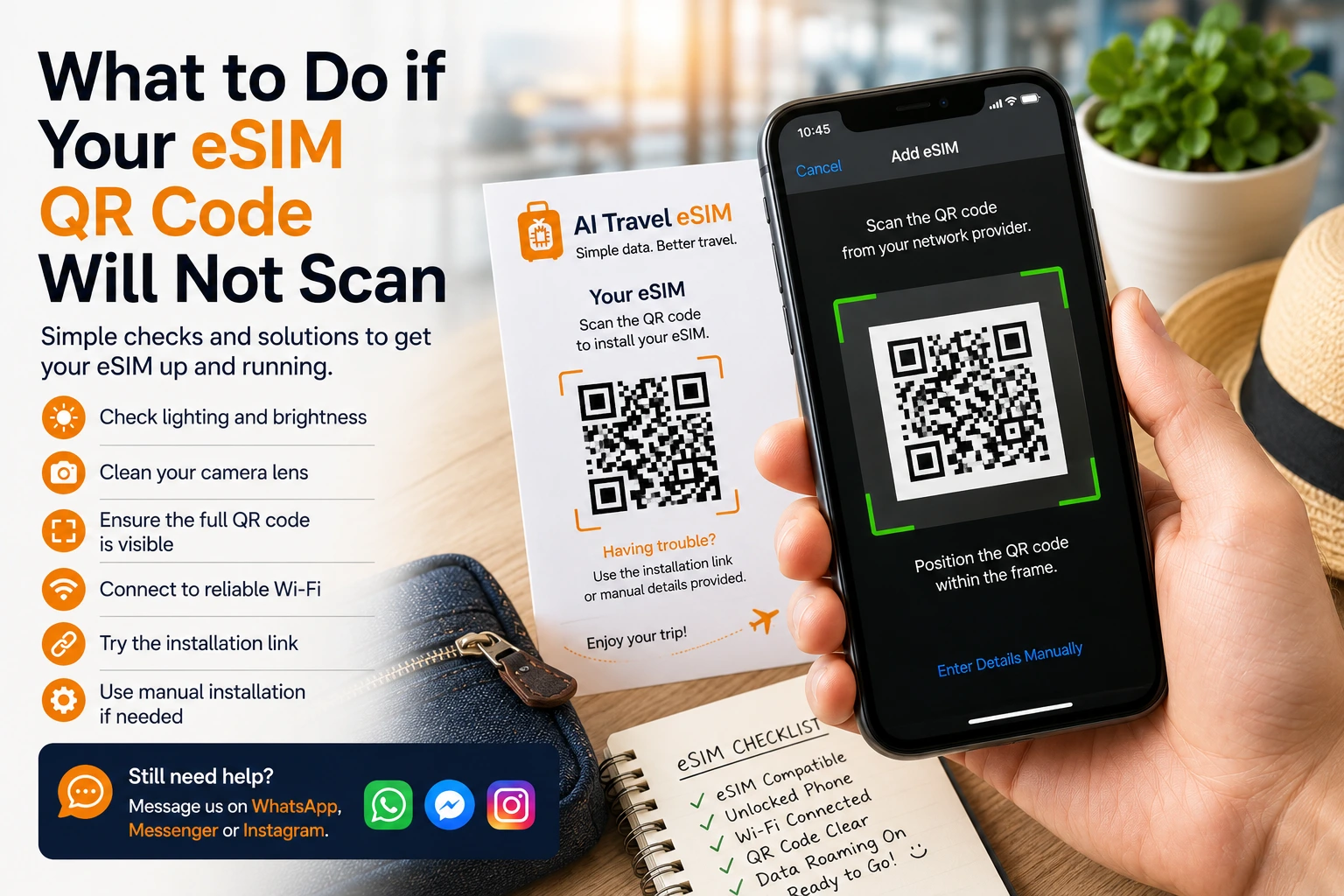
If your eSIM QR code will not scan, try these quick checks first:
- Make sure your phone supports eSIM.
- Make sure your phone is unlocked.
- Connect to reliable Wi-Fi.
- Increase the brightness on the screen showing the QR code.
- Clean your phone camera lens.
- Move to better lighting.
- Make sure the full QR code is visible.
- Try displaying the QR code on another device.
- Check whether there is an installation link.
- Use manual installation details if supplied.
Do not keep deleting and reinstalling eSIM profiles unless you are told to. Some eSIMs can only be installed once, so it is better to check carefully before repeating the setup process.
Why your eSIM QR code might not scan
There are several reasons an eSIM QR code might not scan properly.
The most common are:
- Poor lighting
- Screen glare
- Low screen brightness
- A blurry or damaged QR code
- The QR code is too small on the screen
- The phone camera is too close or too far away
- You are trying to scan the QR code from the same phone
- The phone does not support eSIM
- The phone is locked to a network
- The eSIM has already been installed
- Your phone has too many eSIM profiles stored
- The wrong setup menu is being used
- There is no Wi-Fi connection during installation
The fix depends on which problem is causing it.
Check that your phone supports eSIM
Before troubleshooting the QR code itself, check that your phone is eSIM compatible.
If your phone does not support eSIM, it will not be able to install a travel eSIM, even if the QR code is correct.
On iPhone, go to:
Settings → Mobile Service or Settings → Mobile Data
Look for an option such as Add eSIM.
On Samsung Galaxy, go to:
Settings → Connections → SIM Manager
Look for Add eSIM.
On Google Pixel, go to:
Settings → Network and Internet → SIMs → Add SIM
If you can see an option to add an eSIM, your phone is likely compatible.
You can also check for an EID number in your phone settings. An EID is usually a sign that your phone has eSIM hardware.
Check that your phone is unlocked
Your phone should also be unlocked.
An unlocked phone can use SIMs and eSIMs from different mobile providers. A locked phone may only work with the network it was originally supplied by.
If your phone is locked, the QR code may scan but the eSIM may fail to install or activate.
If you are unsure whether your phone is unlocked, check with your mobile provider before travelling.
Make sure you have Wi-Fi during installation
You normally need an internet connection to install an eSIM.
If your phone is not connected to Wi-Fi, the QR code may scan but the eSIM may not download properly.
Before trying again, connect to reliable Wi-Fi.
This could be:
- Your home Wi-Fi before travelling
- Hotel Wi-Fi
- Airport Wi-Fi
- A trusted Wi-Fi connection from another location
It is usually best to install your travel eSIM before you fly, while you have a stable connection and time to follow the instructions calmly.
Make the QR code easier to scan
If your phone camera cannot read the QR code, the issue may simply be how the code is being displayed.
Try these steps:
- Turn up the brightness on the screen showing the QR code
- Make sure the full QR code is visible
- Zoom in slightly if the QR code is too small
- Avoid cutting off the edges of the code
- Wipe the screen if it is smudged
- Clean your phone camera lens
- Move away from direct glare
- Try better lighting
- Hold the phone steady
- Move the camera slightly further away, then closer again
A QR code needs to be clear and complete. If part of it is hidden, blurry or distorted, your phone may not recognise it.
Do not scan the QR code with a normal QR scanner app
For eSIM installation, you usually need to scan the QR code from your phone’s eSIM setup screen, not from a normal QR scanner app.
On iPhone, this usually means going through Add eSIM in your mobile settings or using the camera when the phone recognises it as an eSIM.
On Samsung, this usually means going through SIM Manager → Add eSIM.
On Pixel, this usually means going through SIMs → Add SIM → Set up an eSIM.
If you scan the QR code with a generic QR scanner, it may show a link or text but not actually install the eSIM.
If the QR code is on the same phone
This is one of the most common problems.
If your eSIM QR code is displayed on the same phone you are trying to install it on, you cannot easily point your camera at it.
You have a few options:
- Open the QR code on another phone, tablet, laptop or desktop
- Print the QR code and scan the printed copy
- Use the installation link if one is provided
- Use manual installation details if supplied
- On supported iPhones, tap and hold the QR code if it was received in a compatible email app or browser
This is why it can be useful to have another device nearby during installation, especially if you are helping a family member set up their travel eSIM.
Try the installation link
Some eSIMs include an installation link as well as a QR code.
If your QR code will not scan, the installation link may be the easiest option.
With AI Travel eSIM, customers receive installation details after purchase. If an install link is available, follow the link and the on-screen instructions.
This can avoid the need to scan a QR code manually.
Make sure you open the link on the device where you want to install the eSIM, unless the instructions say otherwise.
Use manual eSIM installation
If the QR code still will not scan, manual installation may be the next option.
Manual eSIM installation usually uses details such as:
- SM-DP+ address
- Activation code
- Confirmation code, if required
The wording can look technical, but the process is usually straightforward if you follow the steps carefully.
On iPhone, manual installation is usually found after selecting Add eSIM and choosing the option to enter details manually.
On Samsung, manual installation may appear after selecting Add eSIM and choosing an option such as Enter activation code.
On Android phones, the wording can vary depending on the model.
Only use the manual details provided with your eSIM. Do not guess them, change them or copy them from another eSIM.
Check whether the eSIM is already installed
Sometimes the QR code will not work because the eSIM has already been installed.
This can happen if you scanned the QR code earlier, started installation, or partially completed setup.
Before trying again, check your SIM settings.
On iPhone, look under:
Settings → Mobile Service or Settings → Mobile Data
On Samsung, look under:
Settings → Connections → SIM Manager
On Pixel, look under:
Settings → Network and Internet → SIMs
Look for a newly added eSIM, travel SIM or mobile data plan.
If the eSIM is already installed, you may only need to select it for mobile data or adjust the settings. Do not delete it unless you are instructed to do so.
Check whether your phone has reached its eSIM limit
Some phones can store multiple eSIM profiles, but there is still a limit.
If your phone already has several old eSIMs stored, it may not accept another one.
Check your SIM settings and look for old travel eSIMs you no longer use.
Be careful before deleting anything. If an old eSIM is still needed, deleting it may remove it permanently.
If you are sure an old travel eSIM is no longer needed, removing it may free up space for a new one.
Make sure you are using the correct QR code
If you are setting up multiple eSIMs for a family or group, make sure each person is using the correct QR code.
A travel eSIM QR code is usually linked to a specific eSIM profile. It should not be shared publicly or installed on multiple phones unless the provider specifically says this is allowed.
If you have bought more than one eSIM, keep the installation details organised so each traveller installs the correct one.
Do not screenshot and crop the QR code badly
Screenshots can work, but they can also cause problems if the QR code is cropped, compressed or blurred.
If you are using a screenshot, make sure:
- The full QR code is visible
- The corners are not cut off
- It is not blurry
- It has not been heavily compressed
- The screen brightness is high enough
- There is no glare
If the screenshot looks unclear, open the original eSIM email, chat message or install page instead.
What if the QR code scans but the eSIM will not install?
If the QR code scans but the eSIM fails during installation, the issue may not be the QR code itself.
Check:
- Your phone is connected to Wi-Fi
- Your phone supports eSIM
- Your phone is unlocked
- The eSIM has not already been installed
- You are not trying to install the same eSIM on another device
- Your phone software is up to date
- You have enough eSIM profile space available
- You are following the correct setup steps for your device
A scan error and an installation error are slightly different problems.
A scan error means the camera or setup screen cannot read the QR code.
An installation error means the phone read the QR code but could not download or add the eSIM.
What if the eSIM installs but there is no signal?
If the eSIM installs successfully but you do not get mobile data, check the settings.
You may need to:
- Select the travel eSIM for mobile data
- Turn data roaming on for the travel eSIM
- Keep data roaming off on your normal UK SIM
- Turn the eSIM line on
- Restart your phone
- Wait until you are in the destination country
- Check whether the plan has started
- Make sure you are in an area with coverage
Some travel eSIM plans do not connect until you arrive in the destination country. If you install the eSIM in the UK before travelling, it may show no service until you land abroad.
That can be normal, depending on the plan.
Should data roaming be on or off?
This is one of the most confusing parts of travel eSIM setup.
For your normal UK SIM, you would usually keep data roaming off while abroad if you want to avoid roaming charges.
For your travel eSIM, data roaming may need to be switched on for the eSIM to work.
A common setup is:
- UK SIM: data roaming off
- Travel eSIM: data roaming on, if required
- Mobile data: set to the travel eSIM
- Calls and texts: keep on your normal SIM if needed
Always follow the instructions provided with your eSIM.
Do not delete the eSIM too quickly
If something does not work straight away, it can be tempting to delete the eSIM and start again.
Do not do that unless the instructions or support team tell you to.
Many eSIMs are designed to be installed once. If you delete the eSIM after installation, you may not be able to reinstall it using the same QR code.
Before deleting anything, check:
- Is the eSIM already listed in your SIM settings?
- Is it turned on?
- Is it selected for mobile data?
- Is data roaming enabled for the travel eSIM if needed?
- Are you in the correct destination country?
- Have you restarted your phone?
If you are unsure, ask for support first.
When to ask for help
Ask for help if:
- The QR code is damaged or unclear
- The install link does not work
- Manual installation details are missing
- Your phone says the eSIM has already been used
- Your phone says the mobile plan cannot be added
- The eSIM installs but will not connect in the destination
- You are unsure whether your phone supports eSIM
- You are worried about deleting the wrong SIM profile
With AI Travel eSIM, you can message through WhatsApp, Facebook Messenger or Instagram chat and explain what is happening.
Useful details to include are:
- Your phone model
- Your destination
- The exact error message
- Whether the QR code scans at all
- Whether the eSIM appears in your SIM settings
- Whether you are connected to Wi-Fi
- Whether you are already abroad or still in the UK
The more detail you provide, the easier it is to guide you.
How AI Travel eSIM makes setup easier
AI Travel eSIM is designed to make travel data simple.
You do not need to download a separate eSIM app just to buy your plan. You can arrange your travel eSIM through WhatsApp, Facebook Messenger or Instagram chat.
After purchase, you receive your installation link and QR code. If the QR code will not scan, you can check the steps in this guide and ask for help through chat.
That means you are not left trying to work it out alone before your holiday.
Final checklist: eSIM QR code will not scan
Before asking for help, run through this checklist:
- Is your phone eSIM compatible?
- Is your phone unlocked?
- Are you connected to Wi-Fi?
- Is the full QR code visible?
- Is the screen brightness high enough?
- Is your camera lens clean?
- Are you using the eSIM setup menu, not a normal QR scanner?
- Can you display the QR code on another device?
- Is there an installation link?
- Are manual setup details available?
- Has the eSIM already been installed?
- Does your phone already have too many eSIM profiles?
- Have you avoided deleting the eSIM unnecessarily?
Most QR code issues can be solved by working through the basics calmly.
Buy your travel eSIM by chat
AI Travel eSIM makes mobile data abroad simple.
Message the bot on WhatsApp, Facebook Messenger or Instagram chat, tell it where you are travelling, choose a suitable plan, pay in chat, and receive your installation link and QR code.
No separate eSIM app. No airport SIM queue. No physical SIM card to swap.
Just simple travel data, ready for your holiday.
FAQs
Why will my eSIM QR code not scan?
Your eSIM QR code may not scan because of poor lighting, glare, low screen brightness, a blurry code, camera focus issues, the wrong setup menu, or because you are trying to scan it from the same phone.
Can I install an eSIM without scanning the QR code?
Yes, in many cases. You may be able to use an installation link or enter the eSIM details manually using the SM-DP+ address and activation code supplied with your eSIM.
Can I scan an eSIM QR code from the same phone?
Usually not with the camera, because the QR code is on the same screen. You can display the QR code on another device, print it, use an install link, or use manual setup details.
Should I use a normal QR scanner app?
No. It is usually better to scan the eSIM QR code through your phone’s eSIM setup menu, such as Add eSIM, Add Mobile Plan or SIM Manager.
What should I do if the QR code scans but installation fails?
Check that your phone supports eSIM, is unlocked, is connected to Wi-Fi, and has not already installed the eSIM. Also check that you are using the correct QR code for that device.
Should I delete the eSIM and try again?
Not unless you are told to. Many eSIMs can only be installed once, so deleting the eSIM may make it harder to recover.
What is an SM-DP+ address?
The SM-DP+ address is part of the manual installation details used to add an eSIM without scanning a QR code. You should only use the details supplied with your eSIM.
Why does my eSIM show no signal after installation?
Some travel eSIMs only connect when you arrive in the destination country. You may also need to select the eSIM for mobile data and turn data roaming on for the travel eSIM.
Can AI Travel eSIM help if my QR code will not scan?
Yes. You can message through WhatsApp, Facebook Messenger or Instagram chat and explain the issue. Include your phone model, destination and any error message you can see.
Do I need to download an app to fix my eSIM?
With AI Travel eSIM, no separate eSIM app is needed to buy your travel eSIM. If there is a setup issue, you can use the installation details provided and ask for help through chat.